

For the past couple of months, we have been working on several e-Commerce projects, and as we have already been using WordPress for websites & blogs, it was an obvious choice for us to go with something which was as simple & flexible as WordPress for building an online store too.
The majority of our clients who are from India came up to us asking for a solution to sell WooCommerce products at two separate prices Indian rupee & US dollar. The catch here is, it won’t be based on exchange rates; rather store will have a fixed separate price for both countries. Now, most of the payment gateways our clients come up with don’t have support for international currency & WooCommerce, so we technically can have only one base currency. So if we have the rupee set as the base currency, we won’t be able to configure PayPal, as it doesn’t support Indian currency. If we have the dollar as the default currency, Indian payment gateways won’t accept it. All we needed was to have Instamojo as the payment gateway for Indian customers and PayPal for the rest of the world. PayPal by default hides when currency is not supported by which was not the case with instamojo. So to make things work, we needed a combination of PayPal and Instamojo.
Here’s how we did it…
After several hours of digging into the WordPress plugin repository and woocommerce documentation, we found some pointers that would help us.
- Setting country-specific prices, which can be achieved via WooCommerce’s price by country
- Set the dollar ($) as a base currency in WooCommerce
- Using WooCommerce filters to unset the payment gateway based on user location
Let’s get the ball rolling…
Step 1
Install the plugin WooCommerce Price Based on Country by your preferred method (Plugin Interface, Zip file, or FTP)
Step 2
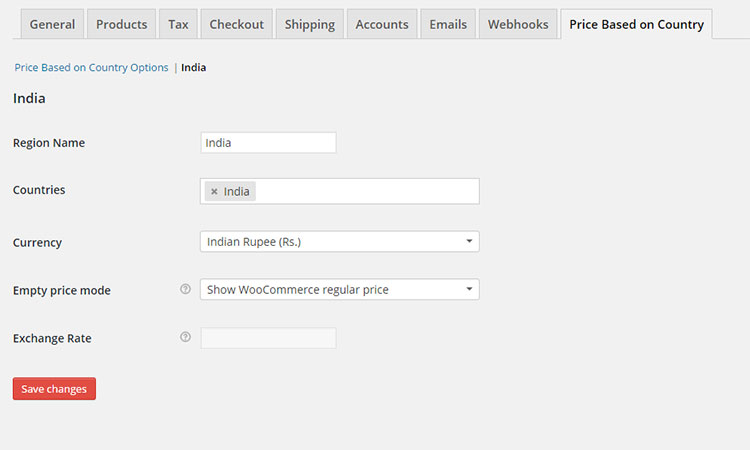
Configure the installed plugin to have country-specific pricing. Once the plugin is installed, you can find a new tab “Price Based On Country” in woocommerce settings. The plugin lets you define the price for as many countries as you want. If the price for a specific country is not defined, we can either have the exchange price calculated based on the base price or have the regular price of the product as a fallback, which will be in the base currency. Add the price of India and save.
Step 3
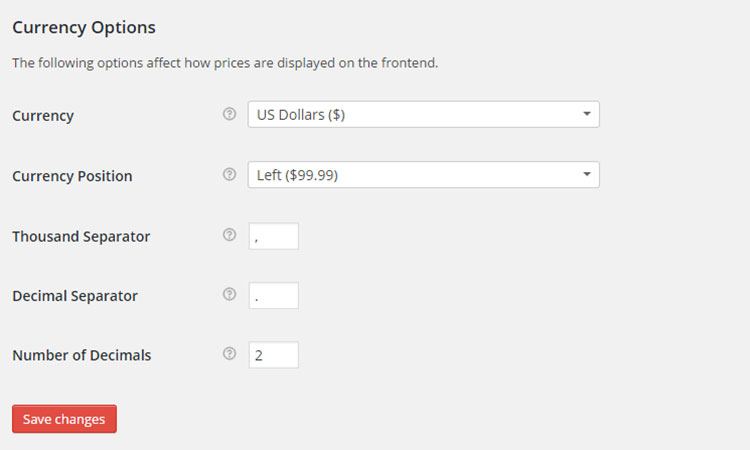
Set the US dollar as the base currency under woocommerce settings
Step 4
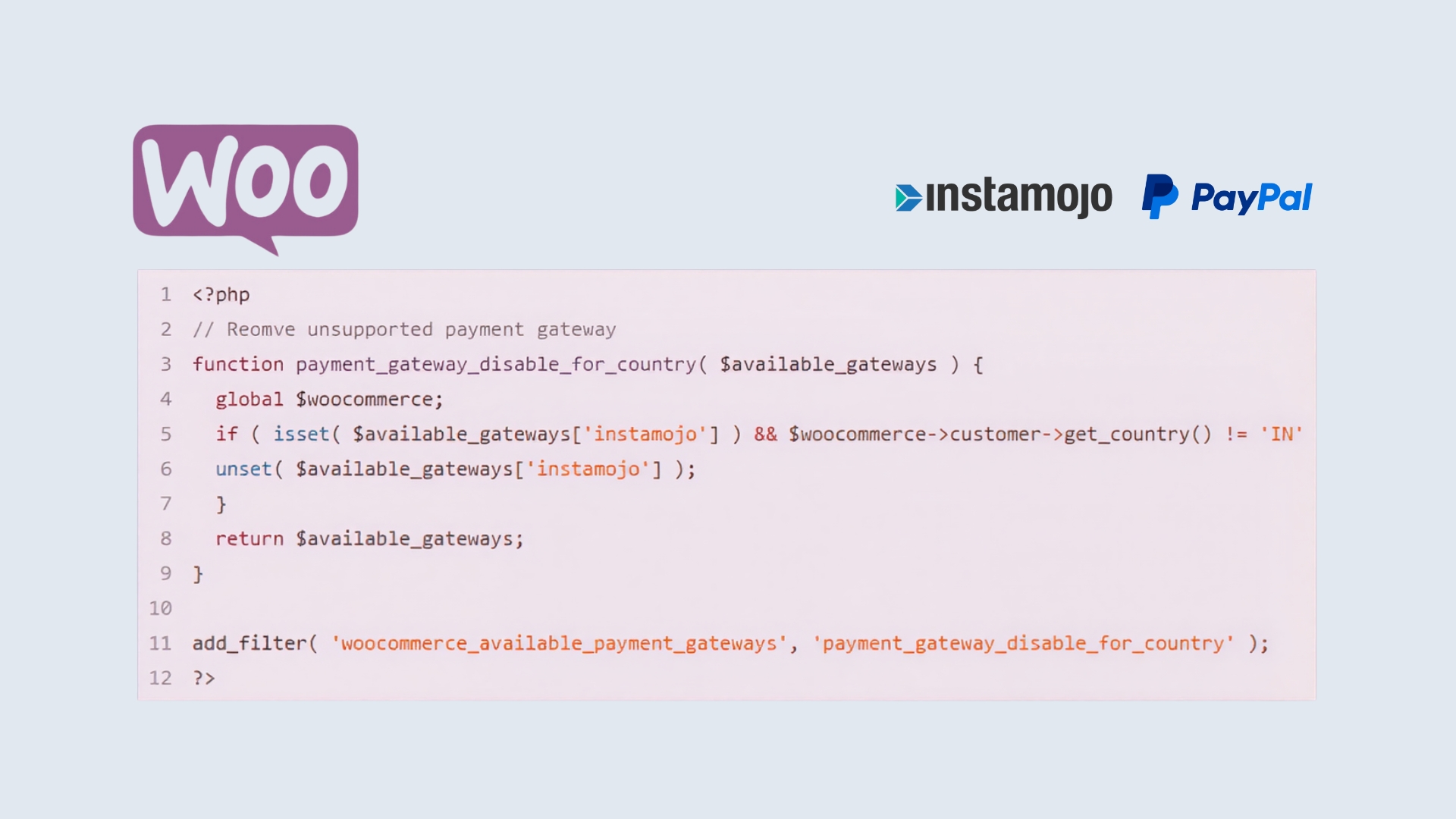
Add the following code to your functions.php to remove instamojo for non Indian customers
[wpgist id=”b3dec6fdf060cde68f04″]
Step 5
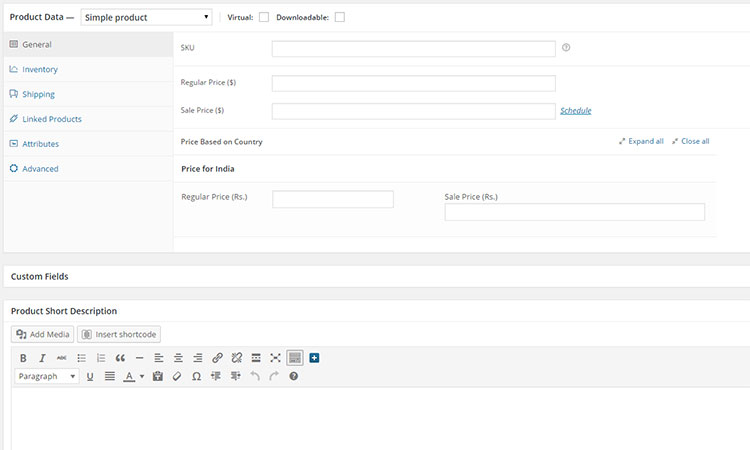
Add a new product under woocommerce, now you will have additional price fields, one for India and one for the rest of the world.
So this is how we achieved the solution. If ever you run into any problems or need to extend your online store features, there will always be someone to turn to. So what are you waiting for?

